Gunmarks
All releases

The major update

More than three months of work: every page redrawn in World of Tanks’ own interface, each vehicle’s page rebuilt as the game’s vehicle screen with its armor in 3D, player and clan pages with far more in them, players, clans and vehicles compared side by side, a Replay Inspector, leaderboards the site computes itself, ASIA back beside EU and NA, Discord sign-in, and a way to support the site.

This update is the result of more than three months of work on GunMarks, which I build and run on my own. Much of it was made from the ground up: the vehicle pages are read from the game’s own files, replays are read in your browser by the game’s own definitions, and the leaderboards are computed by the site itself. Along the way nearly every page was redrawn, and much of the code underneath was replaced or rewritten.

Everything that changed is below, grouped by kind. Where a note has Show me, a short walkthrough points out the new parts on their own page; the compass in the corner of those pages starts it again whenever you like.

Release notes

New22

The whole site in the game’s own look

Every page is now drawn in World of Tanks 2.0’s own interface: its type, panels, buttons, dropdowns, tooltips and tables, and each page has a backdrop of its own. The home page, player and clan pages, the Tankopedia, Points Pursuit, Maneuvers, Onslaught, the competitive section, the leaderboards, the dashboard, sign-in and even the error pages all share it.

The theme switcher and its six other colour themes are gone: one look, dark from the very first paint, without the light flash a page used to show while it loaded.
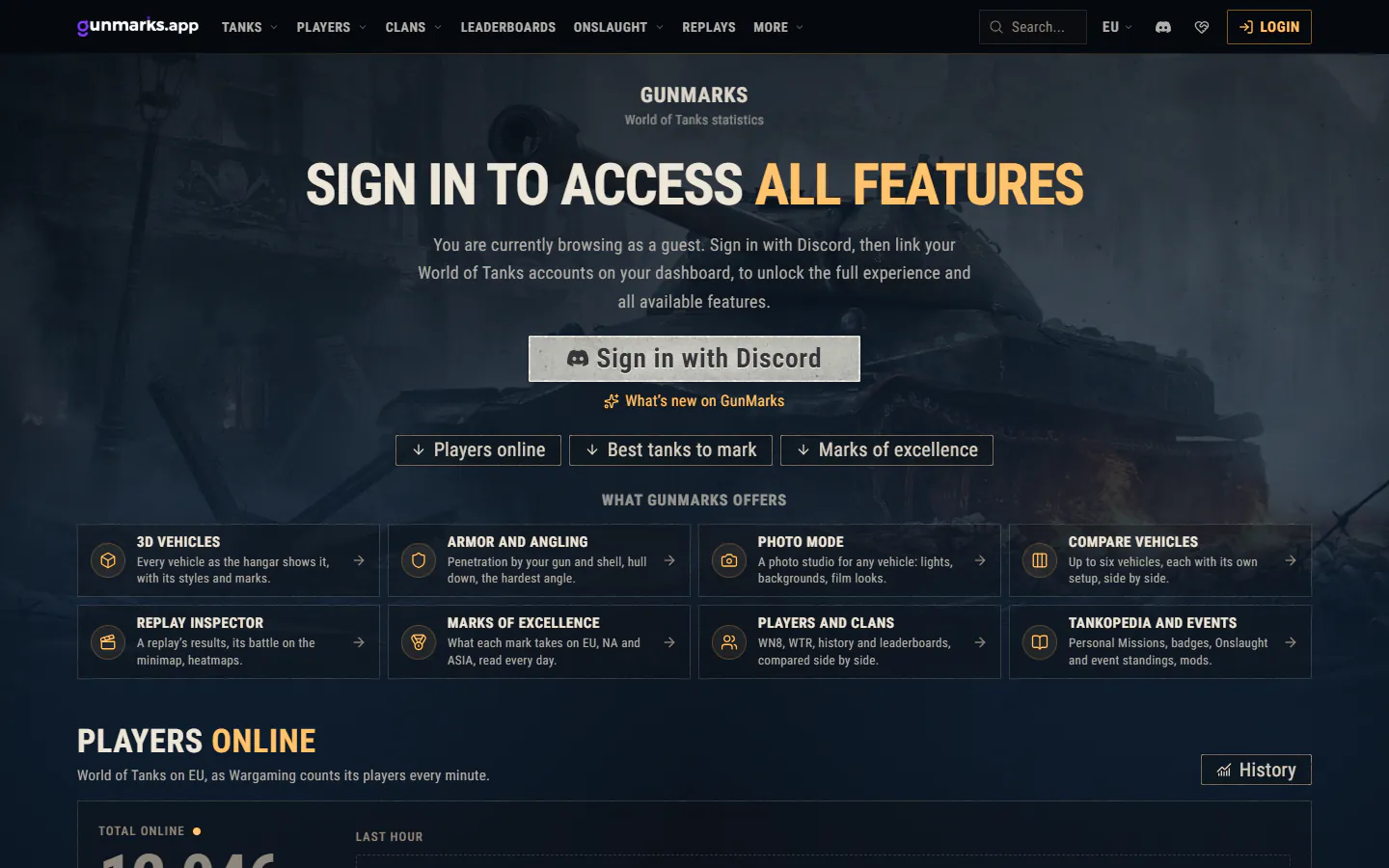
The home page in the game’s look: the invitation to sign in over the Object 260 artwork, links to its sections, and what GunMarks offers in compact tiles.

Every vehicle’s page, as the game’s vehicle screen

A vehicle’s page is now the game’s About vehicle screen, built from the game client’s own files for every vehicle: Overview, Characteristics, Modules, Field modification (Upgrades on tier XI), Marks of excellence, Mastery and a Leaderboard.

Characteristics gives the game’s numbers for any setup of modules, shells, equipment, consumables, directives, crew skills and field modifications, with the game’s own tooltip on every item, and the arithmetic was checked against the numbers a running game client shows. The tab you open is kept in the address, so a link opens it.

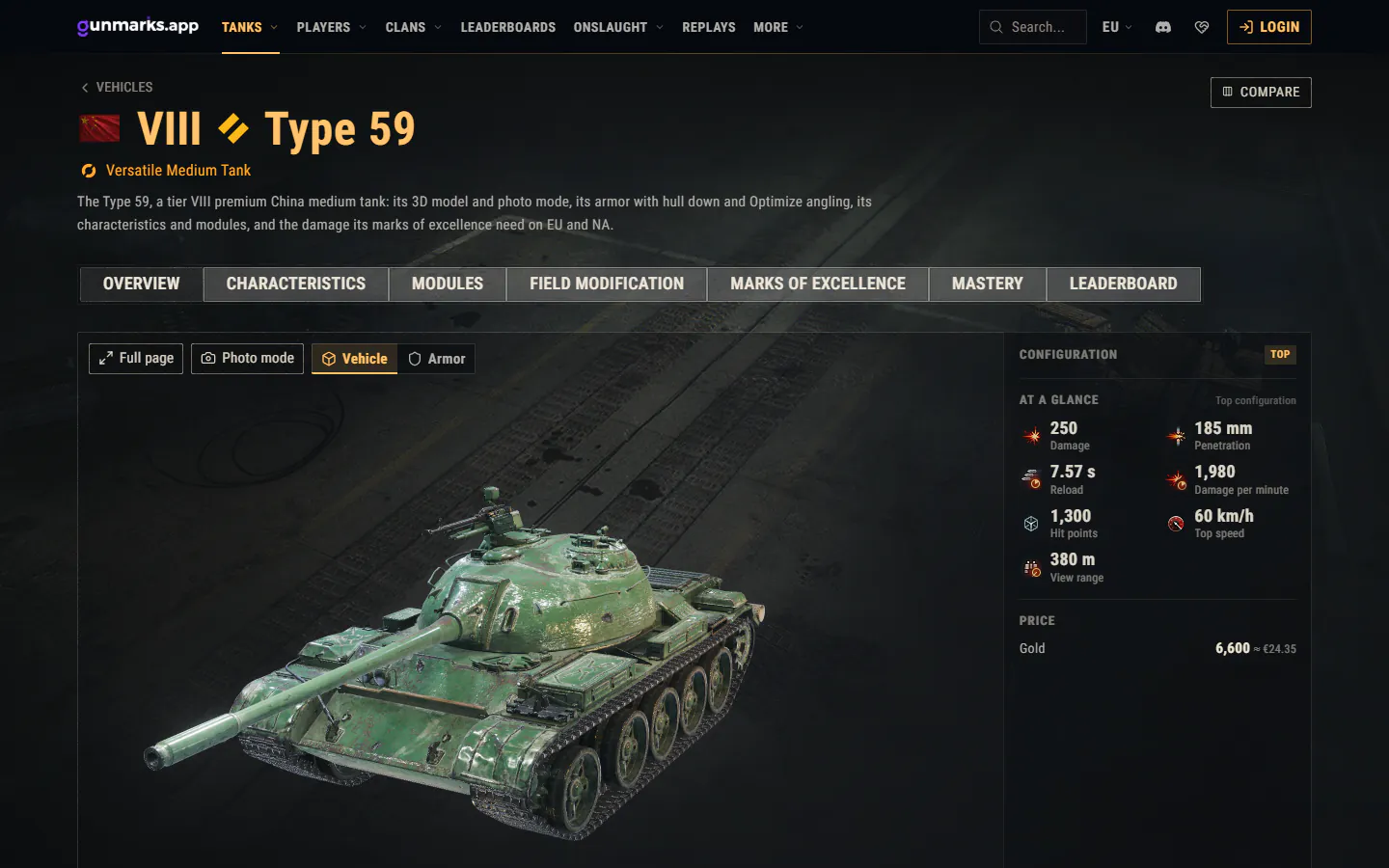
The Type 59’s page: its name plate, its tabs, the vehicle in 3D and its figures at a glance.

The vehicle in 3D, and its armor

The Overview shows the vehicle from the game’s own HD model, with its styles and its marks of excellence on the barrel, laid on as the game lays them.

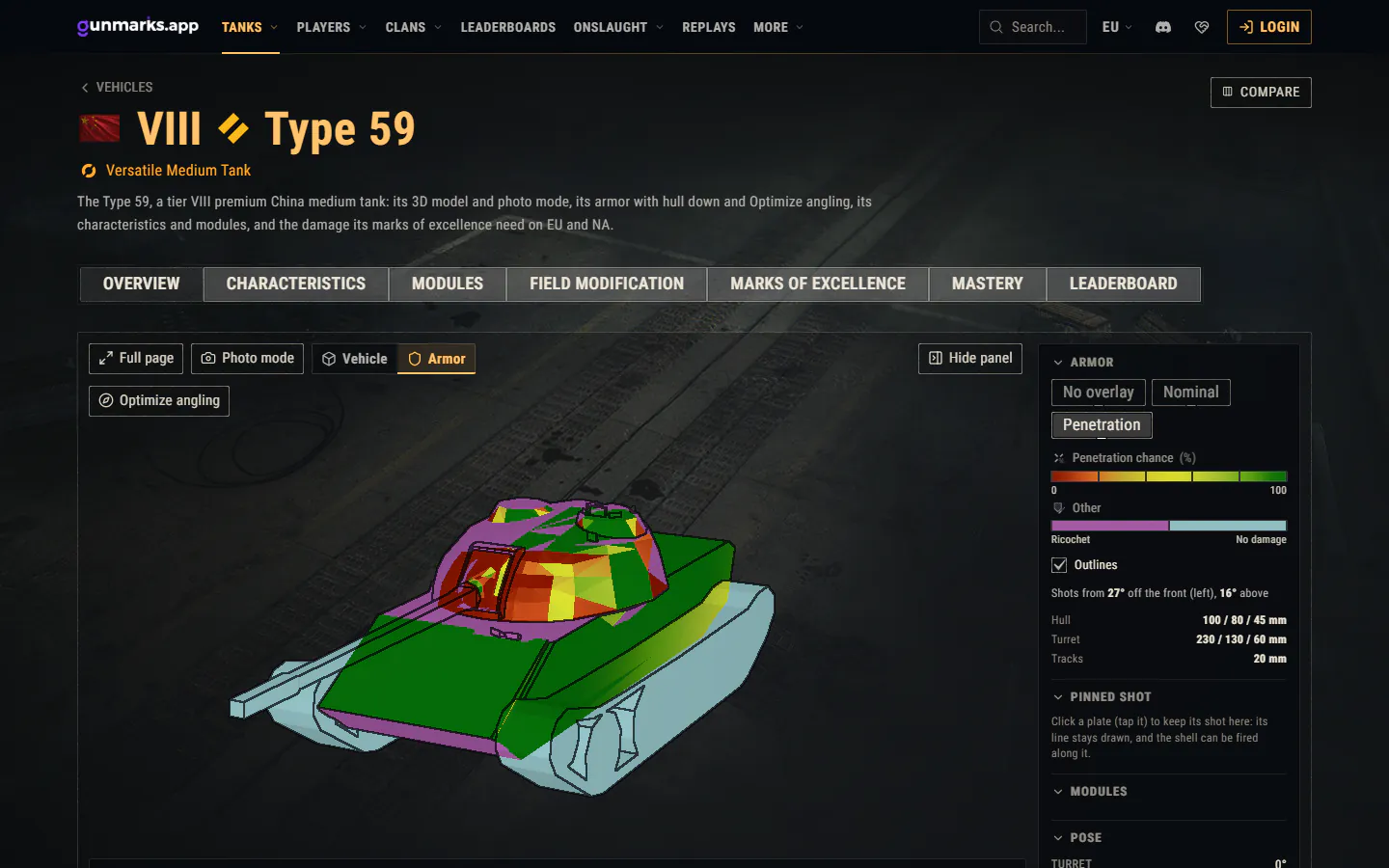
Switch the view to its armor for every plate’s thickness, or the chance a gun and shell of your choice goes through: from any distance, hull down on the gun’s depression, or at a point you pin and fire at, one shot or ten.

Read instead

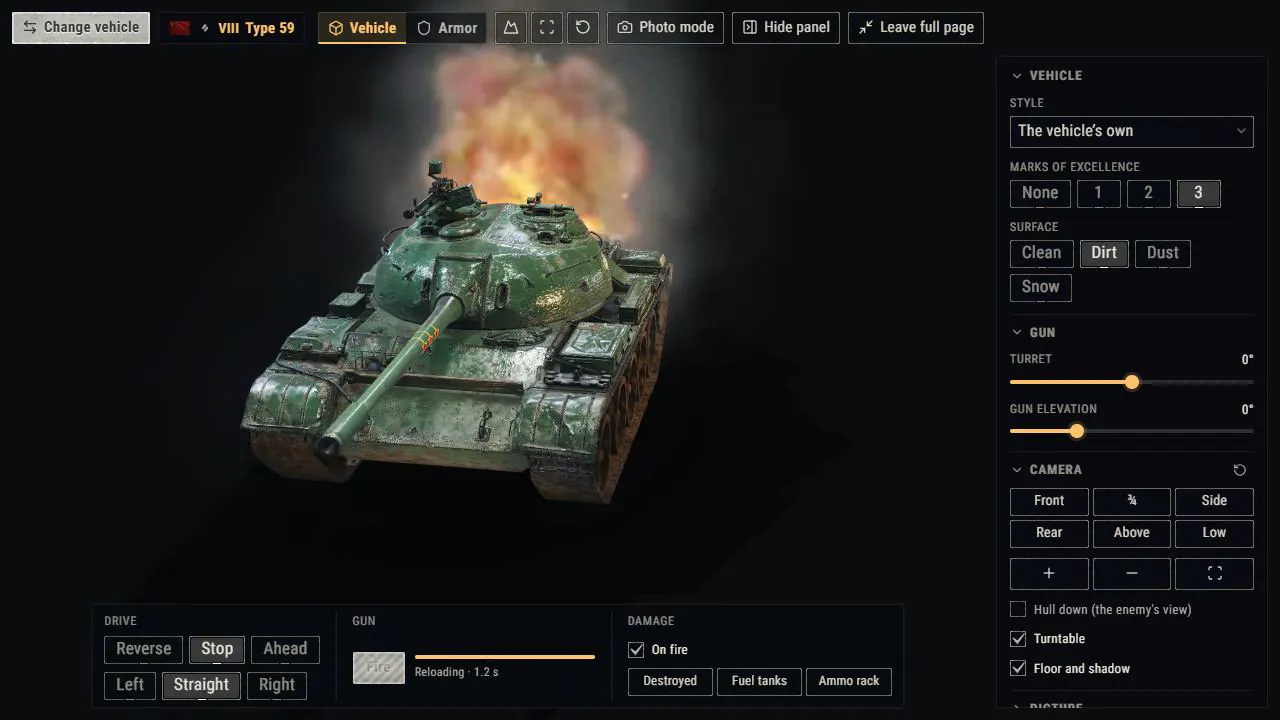
The Type 59 in the full-page view, turning on its turntable. Three marks of excellence go on its gun and dirt on its hull, and the floor takes its shadow. The gun fires with the game’s own effects while the reload counts down, and the Damage section sets the vehicle on fire. The view switches to its armor, each plate coloured by the chance a shell goes through it. Photo mode follows: the vehicle under dramatic light on a pool of light, the camera moved round it from behind to three-quarters front and to the side, and the photo taken and saved.

The Type 59’s armor view: the chance a shot goes through each plate, from red to green, ricochets in violet, and the armor panel beside it.

The Replay Inspector

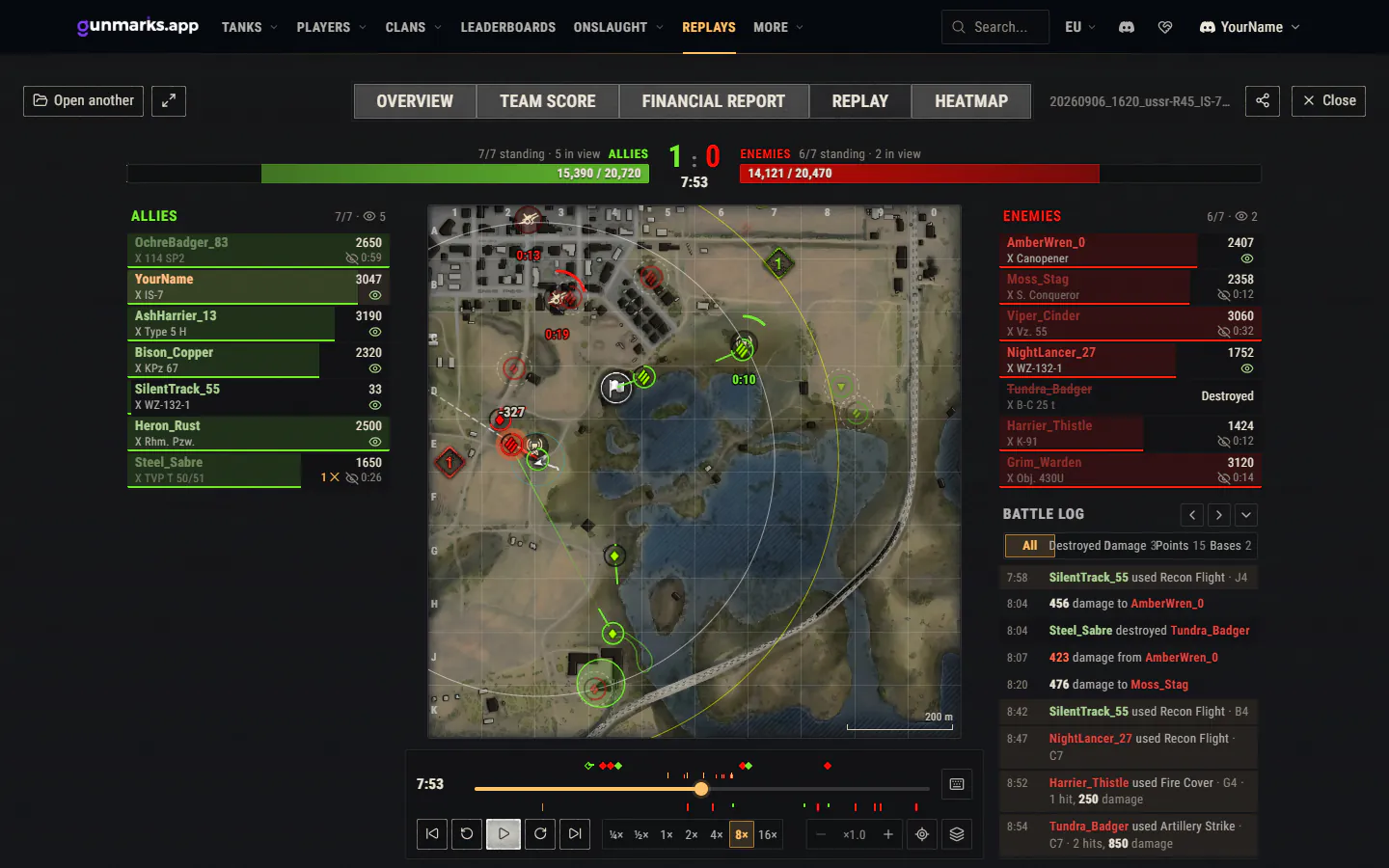
Drop a .wotreplay file on the Replay Inspector and it opens on its battle results, as the game shows them: the Overview, the Team Score, the Financial Report, and the battle itself played on the minimap, with every vehicle’s movement, shots, spotting, base captures and Onslaught’s points of interest. Your replays are read in your browser and never uploaded.

The Team Score shows each player’s vehicle setup (modules and field modifications for everyone; equipment, consumables, directives, shells and crew for the players the recording followed) and their win rate and WTR, except in training rooms and tournaments. Sign in with Discord to use it: everyone opens 10 replays a day, 3 at a time.

Read instead

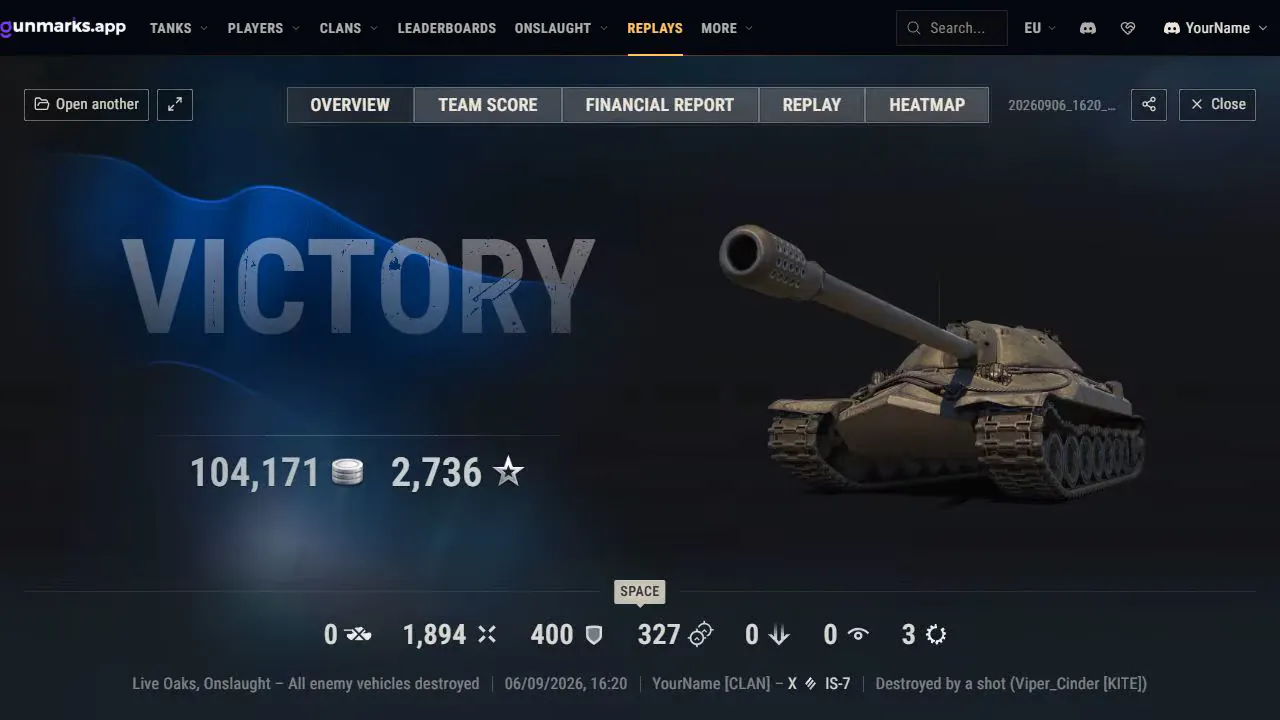
A replay opens on its battle results: the win, the credits and experience earned, and the player’s figures. The Team Score lists both teams with each player’s vehicle, damage, kills and experience. The Replay screen plays the battle on the minimap at eight times its speed, with health bars, shots, spotting and the battle log beside it. The Heatmap shows where the vehicles spent their time, first the enemies, then the allies.

A battle on the Replay Inspector’s minimap at 7:53: every vehicle’s position and health, its shots and trails, and the battle log beside the map.

Player pages, with far more in them

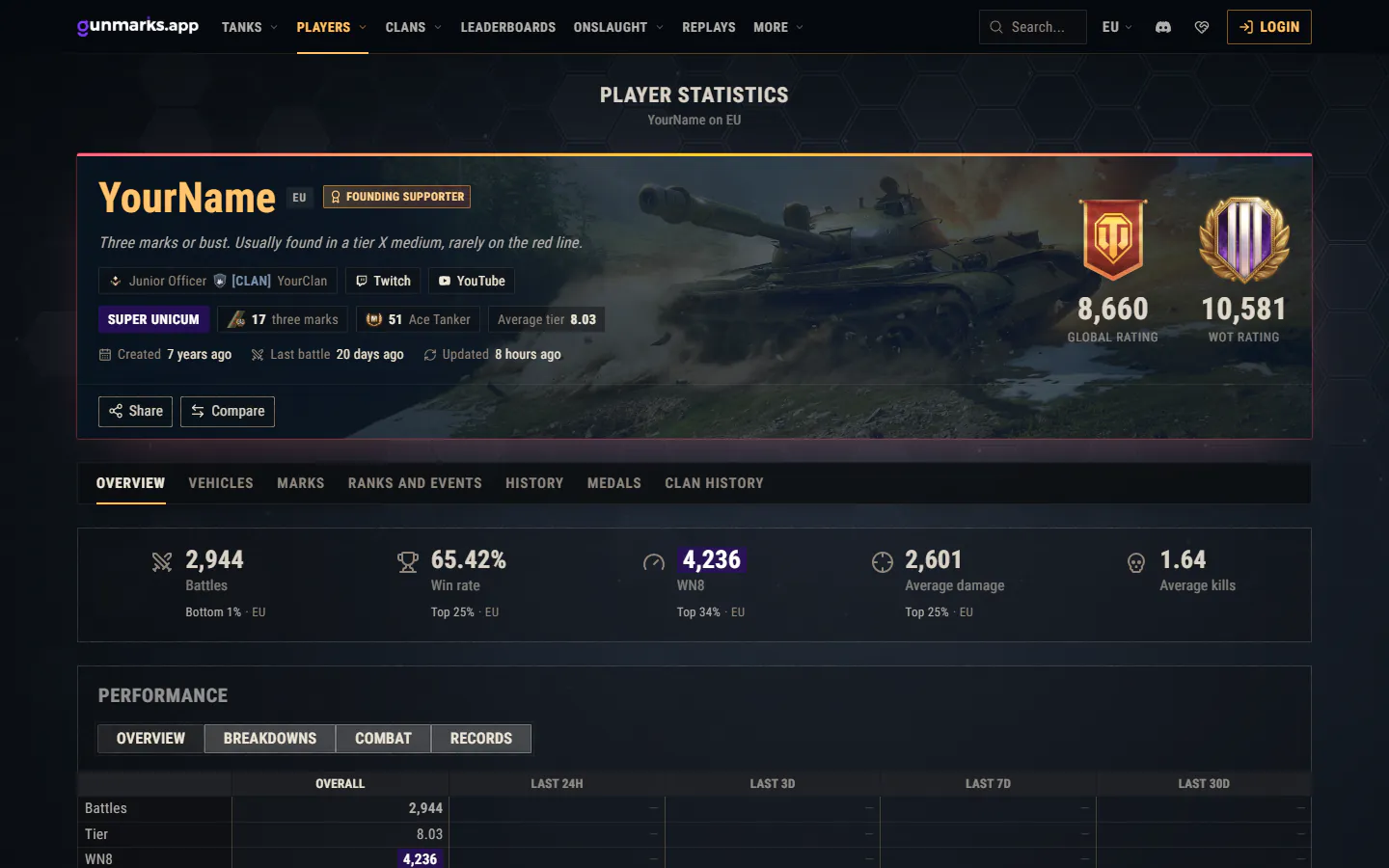
A player’s page is drawn in the game’s look around a new player card (name colour, background, bio, links, supporter badge, clan and ratings), arrives rendered from the server, so a profile shows at once, and has one address: another spelling of the name leads to it. The card stays at the top and the rest is in tabs under it, each with an address of its own: Overview, Vehicles, Marks, Ranks and events, History, Medals and Clan history.

  • Under the name: the WN8 band, the vehicles with three marks, the Ace Tanker badges, the average tier and when the site last read the player, with Share and Compare beside them.
  • Overview: the lifetime figures with where the player stands among the server’s players, such as “Top 13%”, then the periods, Breakdowns by tier, class, nation and premium, Combat (firepower, armor, support and trading, from the game’s lifetime counters) and Records with the vehicles that stand out.
  • Ranks and events: their places on the site’s leaderboards and on the vehicles’ boards, their Onslaught, Legend, Maneuvers and Points Pursuit results, and their shared reticle.
  • Marks: one, two and three marks and the mastery badges counted, tier by tier, and the vehicles with three marks, each with how rare its three marks are on the server.
  • Medals: the account’s medals with the game’s own pictures, names and tooltips, the most valuable first.
A player’s page: the player card with the clan, badges and ratings, Share and Compare, the tabs, and the lifetime figures with where the player stands on EU.

Clan pages, rebuilt

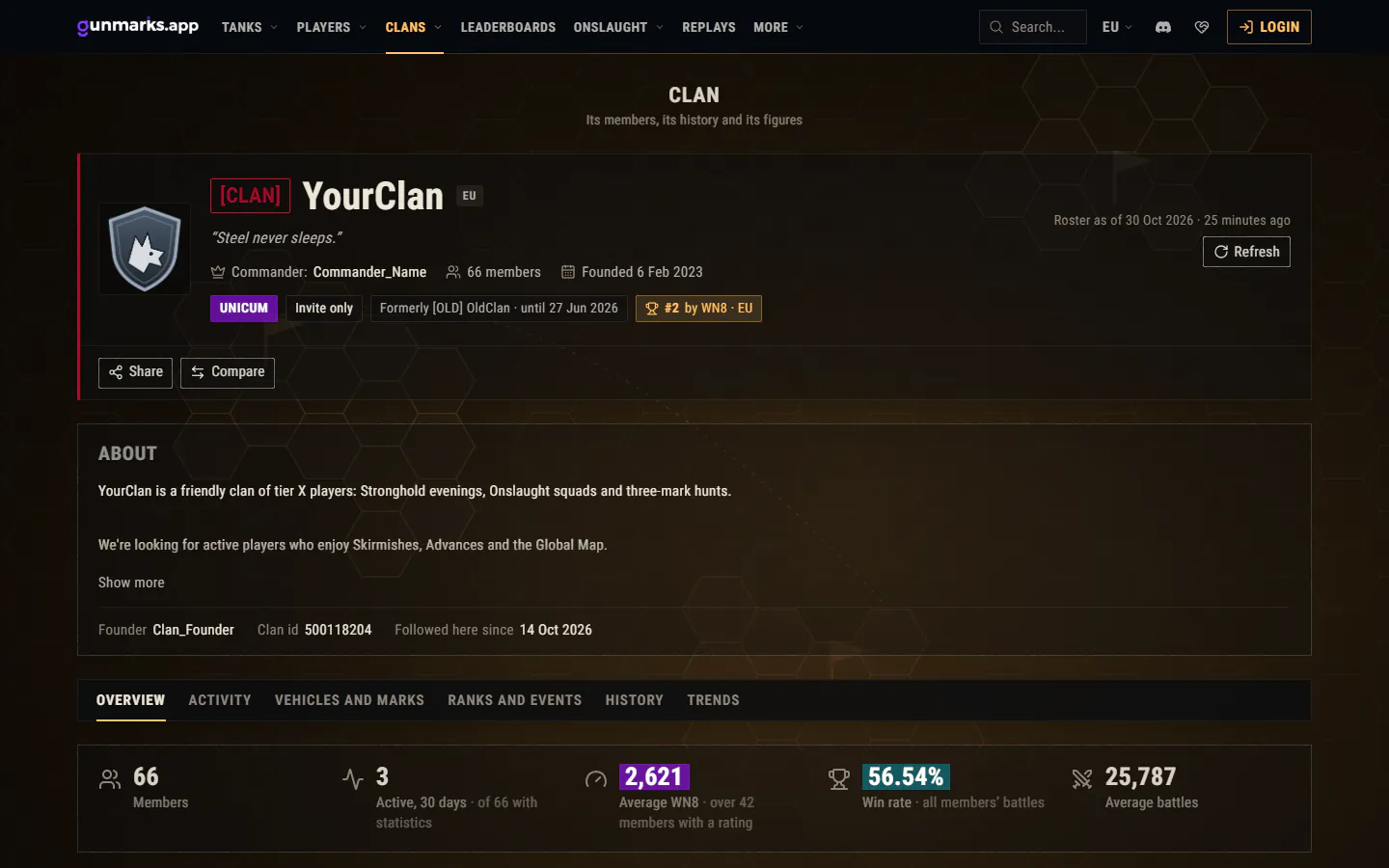
A clan’s page opens with what the clan says of itself, folded away when it is long, and the rest is in tabs, as on a player’s page: Overview, Activity, Vehicles and marks, Ranks and events, History and Trends. Under the clan’s name: its members’ WN8 band, whether it is recruiting, its best place on the site’s clan leaderboards, and Share and Compare.

  • Overview: the clan’s figures and its members, with search, filters by position, activity and WN8, the columns you choose, each member’s last 30 days and days in the clan. Press a member’s row and it opens to their figures. On a phone, members are cards.
  • Activity: the members’ last 30 and 60 days, the year by day and by week, a calendar, and the most active and best members.
  • Vehicles and marks: each member’s tier X and XI vehicles, the most played vehicles with the clan’s figures in them, the marks of excellence the members hold and the rarest of them.
  • Ranks and events: its places on the site’s clan leaderboards, its Maneuvers events and the Onslaught seasons its members finished as Legend or Champion, with Stronghold, Global Map and Rating: what Wargaming’s clan portal shows of the clan, read when its page is refreshed.
  • History and Trends: joins, leaves and changes of position day by day, the member count over time, joins and leaves by month, and time in the clan.

Clans with five members or more can now be found through search engines.

A clan’s page: its emblem, motto and badges with its place on the clan leaderboards, Share and Compare, its description, the tabs and the clan’s figures.

Compare vehicles

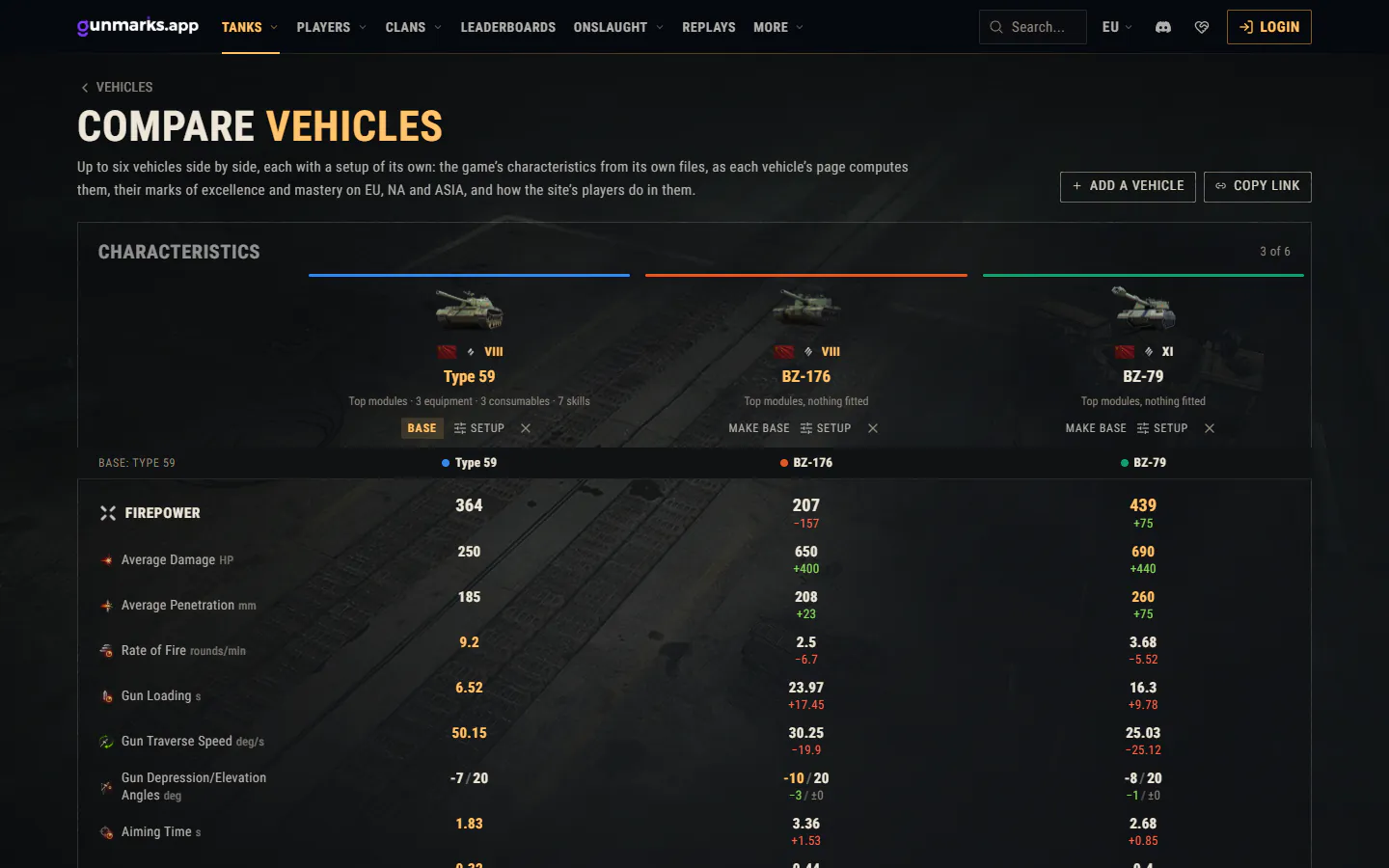
Put up to six vehicles side by side, as the game’s Vehicle Comparison screen does: the game’s characteristics of each, the best value of each row marked, and every vehicle set against the first, better in green and worse in red.

  • A setup for each vehicle: modules, shell, equipment, consumables, directives, crew skills, the Field Modification or the tier XI upgrades, and camouflage. A vehicle can be added twice, to compare two setups of it.
  • Marks and players: what each mark of excellence and mastery badge takes on EU, NA and ASIA, and how the site’s players do in each vehicle.
  • Charts of the ratings, accuracy, speed, power and traverse.

Everything is kept in the address, so a link opens the same comparison. Start from Compare on a vehicle’s page, which takes its setup along, or pick vehicles in the vehicle list.

The Type 59 with its own setup, the BZ-176 and the BZ-79 compared: the game’s firepower figures, the best in gold and each against the Type 59 in green or red.

Leaderboards, computed by the site

The site now computes its own leaderboards: players by WN8, WTR, battles, win rate, damage and experience over the last 24 hours, the last 7 days and overall; clans by their members’ WN8 and WTR; and every vehicle’s best players, overall and over the last 24 hours, in each region or all of them. They open on your own server, and each vehicle’s page has a Leaderboard tab.

Optimize angling

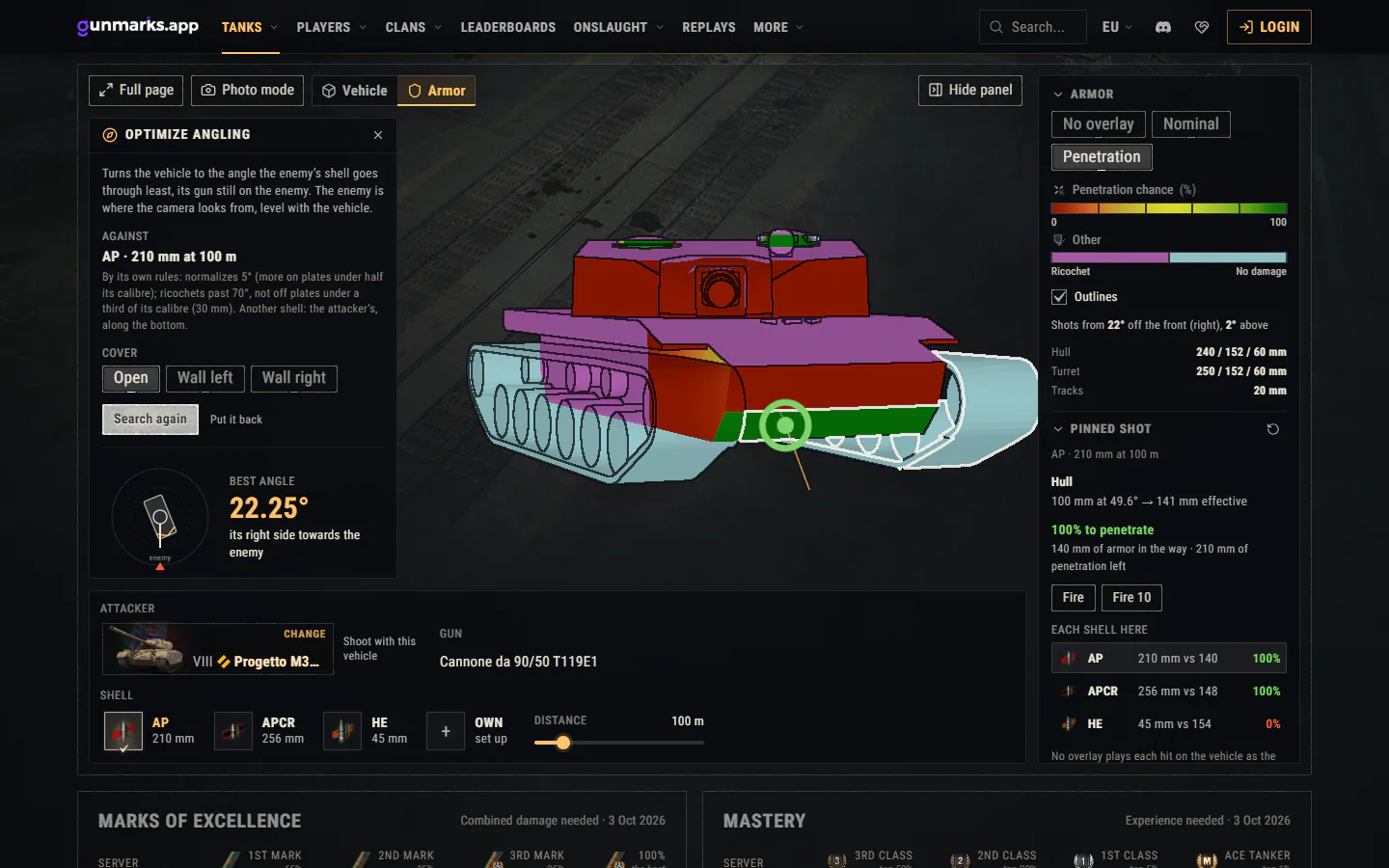
In the armor view, Optimize angling finds the angle that leaves an attacker the least to hit while your own gun still bears on them, in the open or behind a wall, on the ground taken from Himmelsdorf.

Optimize angling on the BZ-176: the vehicle turned 22° from the enemy, its hardest angle against the chosen shell, each plate coloured by the chance it goes through.

Photo mode, a photo studio

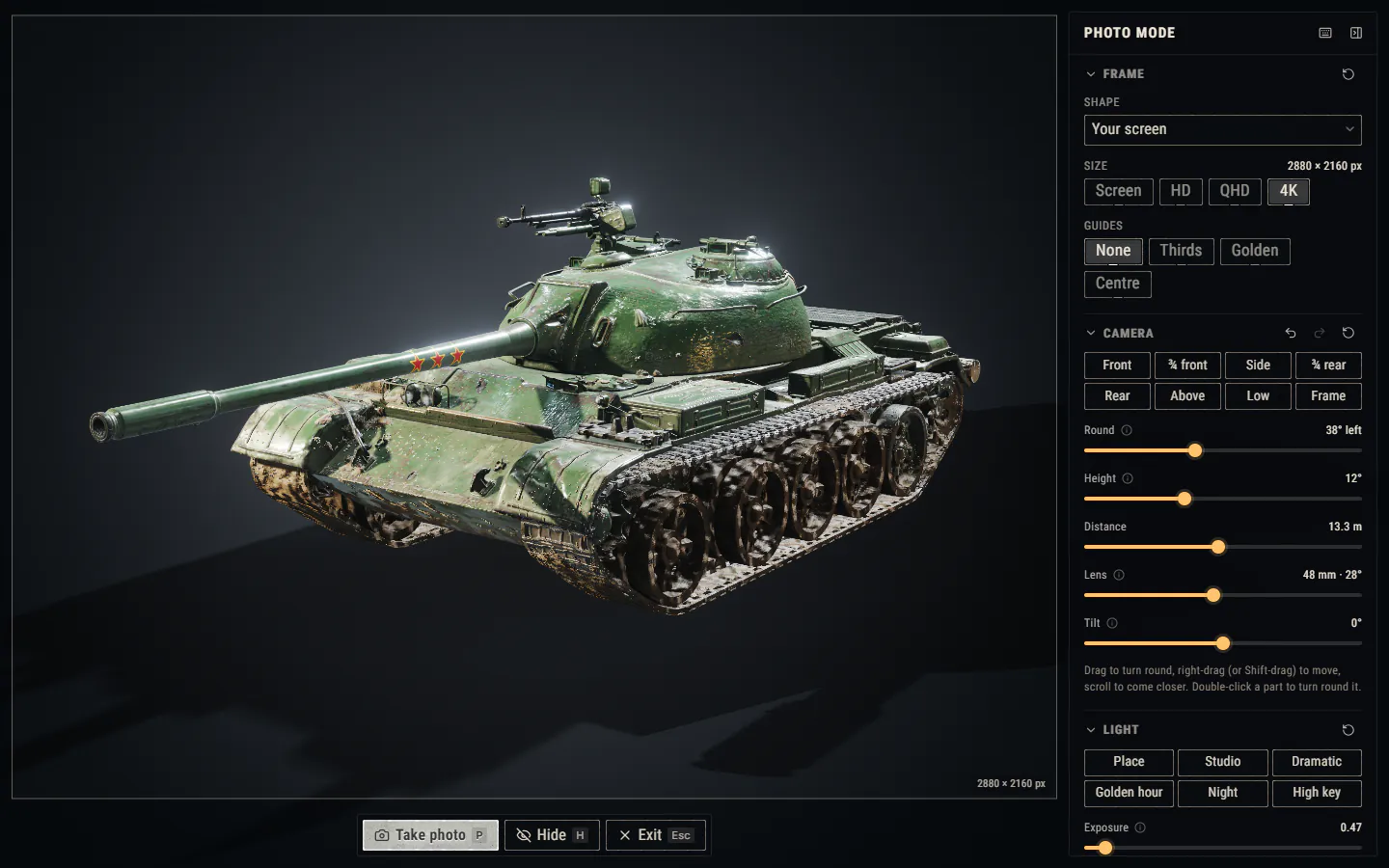
Photo mode turns the 3D view into a studio: frame shapes from 9:16 to 32:9 and sizes up to 4K, a camera with lenses from 14 to 200 mm, the place’s own light plus your key, fill and rim lamps, backgrounds, and effects from white balance and filters to bloom, grain and depth of field. Your setups are kept in your browser.

Photo mode: the Type 59 three-quarters front under dramatic light on a pool of light, with the frame, camera and light settings beside it.

Light, fire, motion and damage in the full-page view

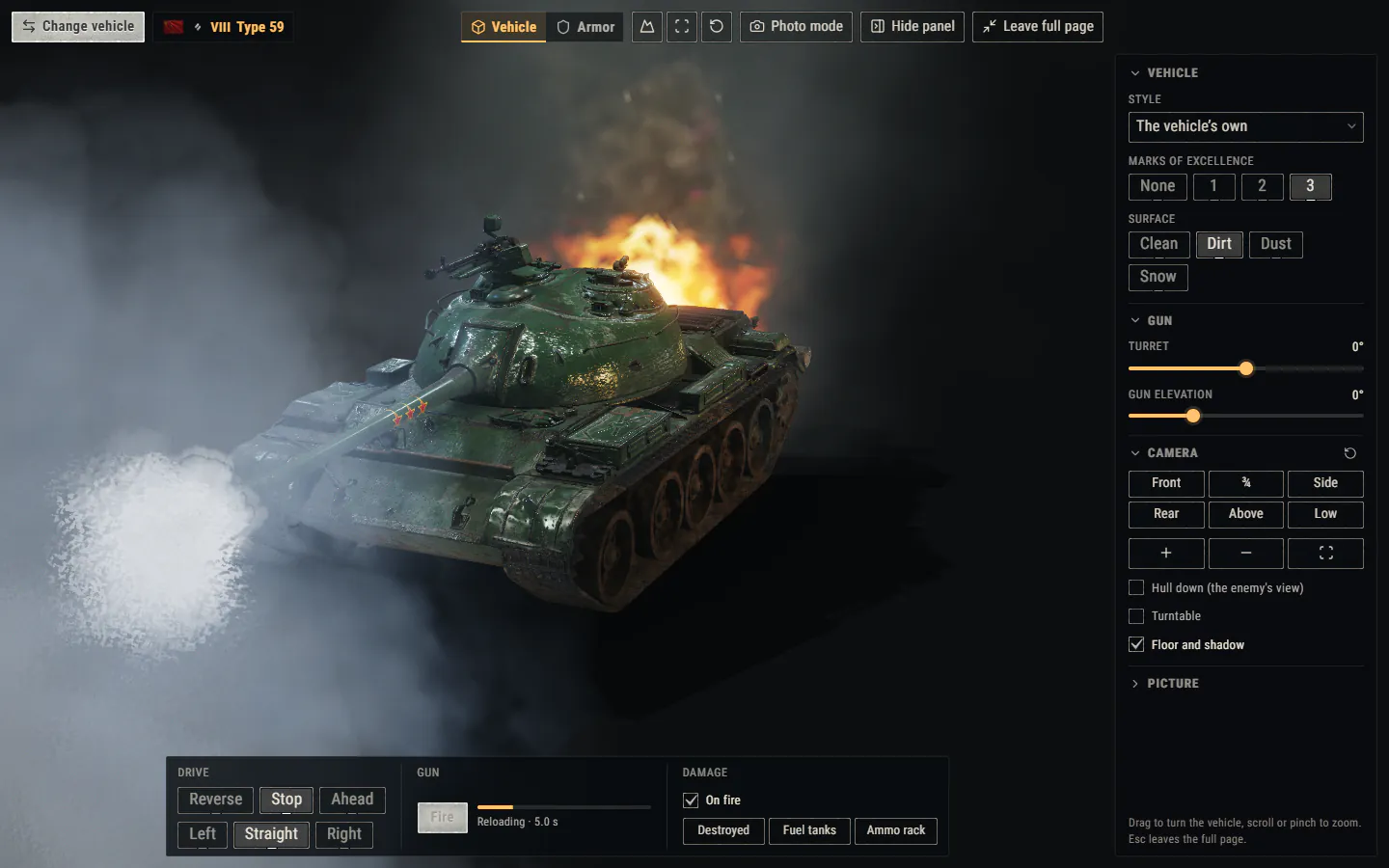
The 3D view lights the vehicle as the game’s own environment does, and in the full-page view vehicles with boosters fire them. The gun fires with the game’s own effects (twin, double, automatic and burst guns as the game fires them), reloads count down, and the vehicle drives on its own tracks or wheels, in its own modes where it has them.

  • The Damage section sets it on fire, destroys it three ways (its turret thrown off by the ammunition among them) and repairs it.
  • Mud, dust and snow lie on it as they would on a real vehicle.
  • Change vehicle swaps it without leaving the page.
The full-page view: the Type 59 with three marks and mud on it, burning after its gun has fired, the shot’s smoke in front and the reload counting down.

Vehicles and the Tech Tree

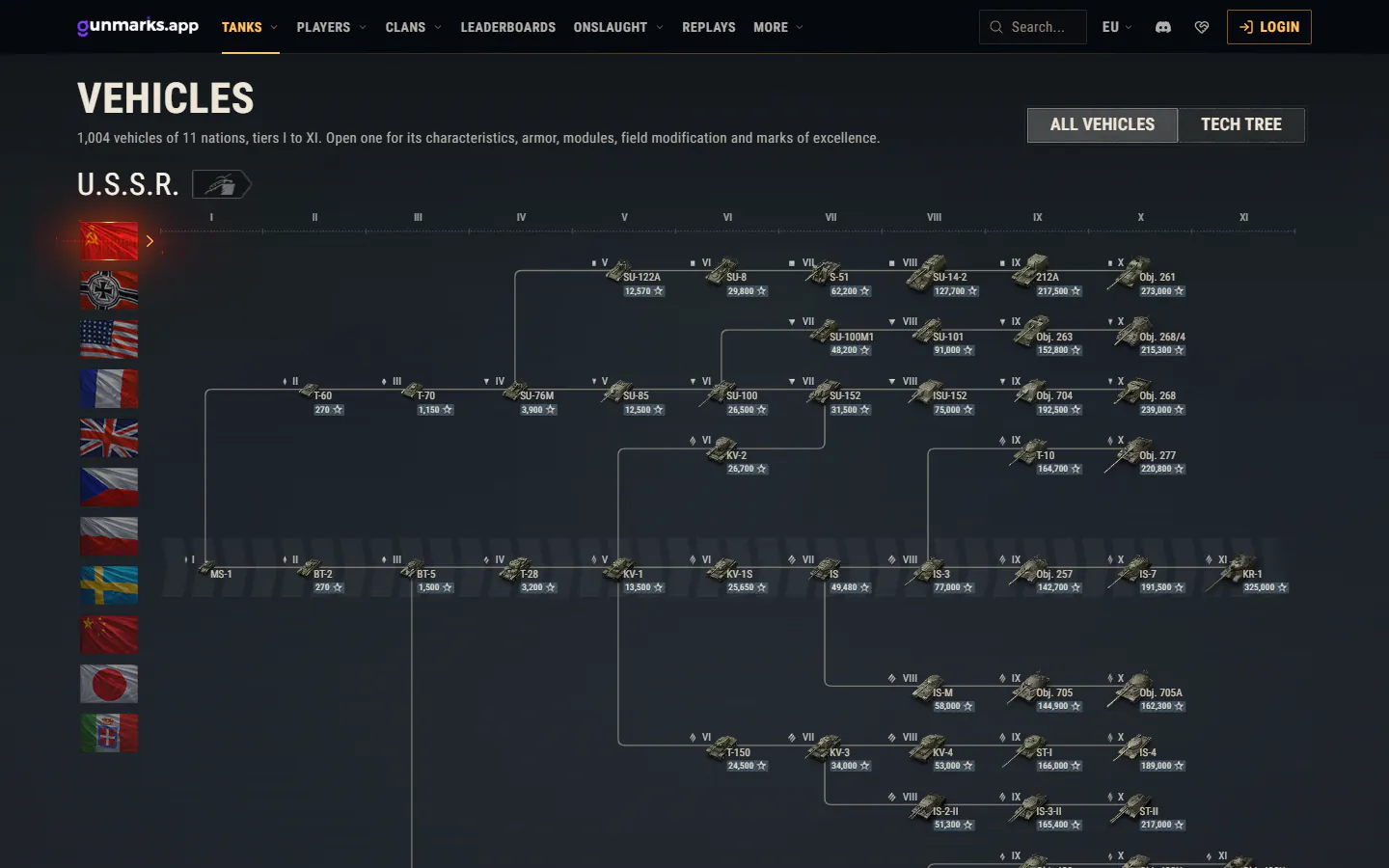
The vehicles page lists every vehicle, searched by name and filtered by tier, class, nation and kind, with the game’s vehicle card when you hover one. Or switch to the Tech Tree, drawn as the game’s 2.0 screen draws it: the vehicles’ own pictures, the lines bending round, the premium vehicles in their gold area, nation by nation.

The U.S.S.R. Tech Tree as the game’s 2.0 screen draws it, the nations down the left.

Compare replays, and their heatmaps

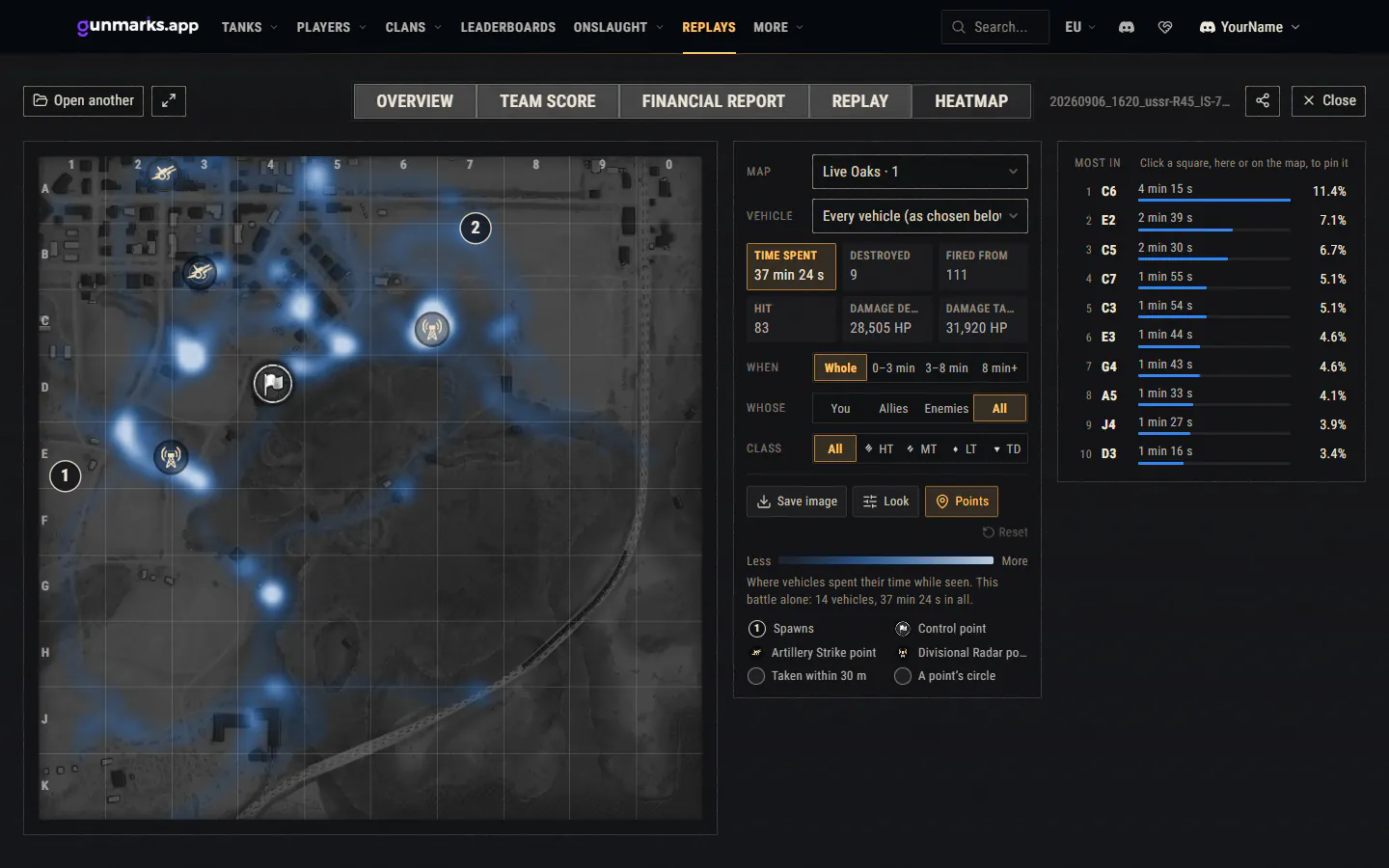
Open several replays together to compare your battles side by side: each game mode with its own averages, and each column’s best battle marked. Heatmaps show where vehicles spent their time, were destroyed, fired from and were hit, filtered by vehicle class, battle phase or damage, or one vehicle with its path; a heatmap saves as a picture.

A heatmap of Live Oaks: where the vehicles spent their time, the battle’s figures, filters by time, team and class, and the busiest squares of the map.

Your replays, and sharing them

The replays you opened are listed so you can open them again. Supporters can save replays and share them with a link that works for one to six hours, for anyone signed in or for themselves alone.

A player’s battles over time

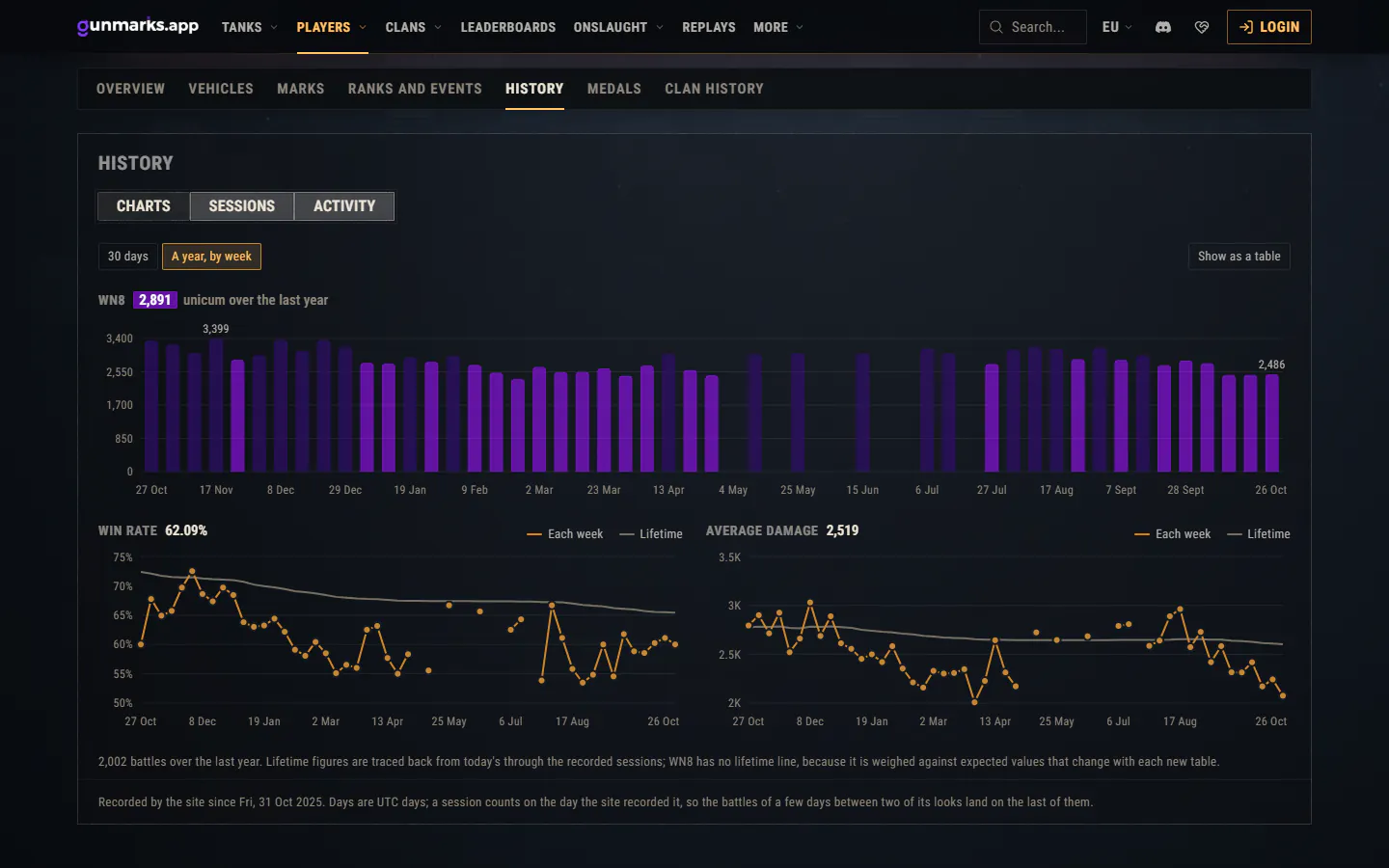
The History tab of a player’s page shows the battles the site has recorded: WN8, win rate and damage by day over the last 30 days or by week over the year, set against their lifetime figures; the sessions, each opening to the vehicles played; and a year of activity as a calendar, with streaks and the busiest day. A player’s history starts when the site first reads them.

The History card: WN8 by week over the year, and win rate and average damage week by week against the player’s lifetime figures.

Compare players

Put up to four players side by side: their lifetime figures and the last 24 hours, 7 and 30 days, their marks and badges, and every vehicle at least two of them have played, the best value of each row in gold. Open it from a player’s Compare, then add players with the search or a pasted profile address.

Compare clans

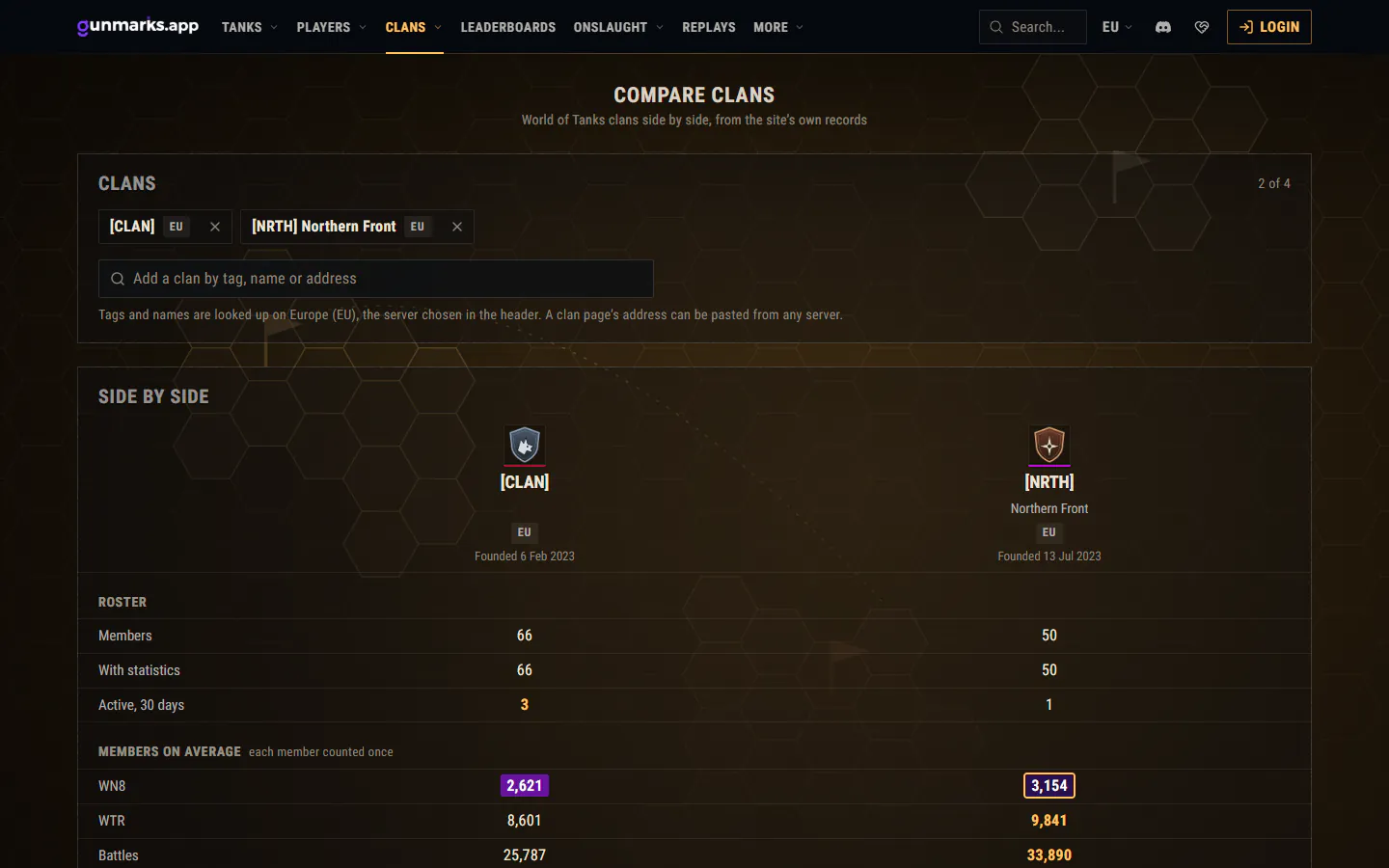
Put up to four clans side by side: members, members active in the last 30 days, average WN8, WTR and battles, and win rate, damage, assisted damage, kills, survival, hit rate and experience over all their members’ battles, the best value of each row in gold. Open it from a clan’s Compare, or find clans by their tag.

Two clans side by side: their rosters and their members’ average WN8, WTR and battles, the better value of each row marked.

Share a player or a clan on Discord

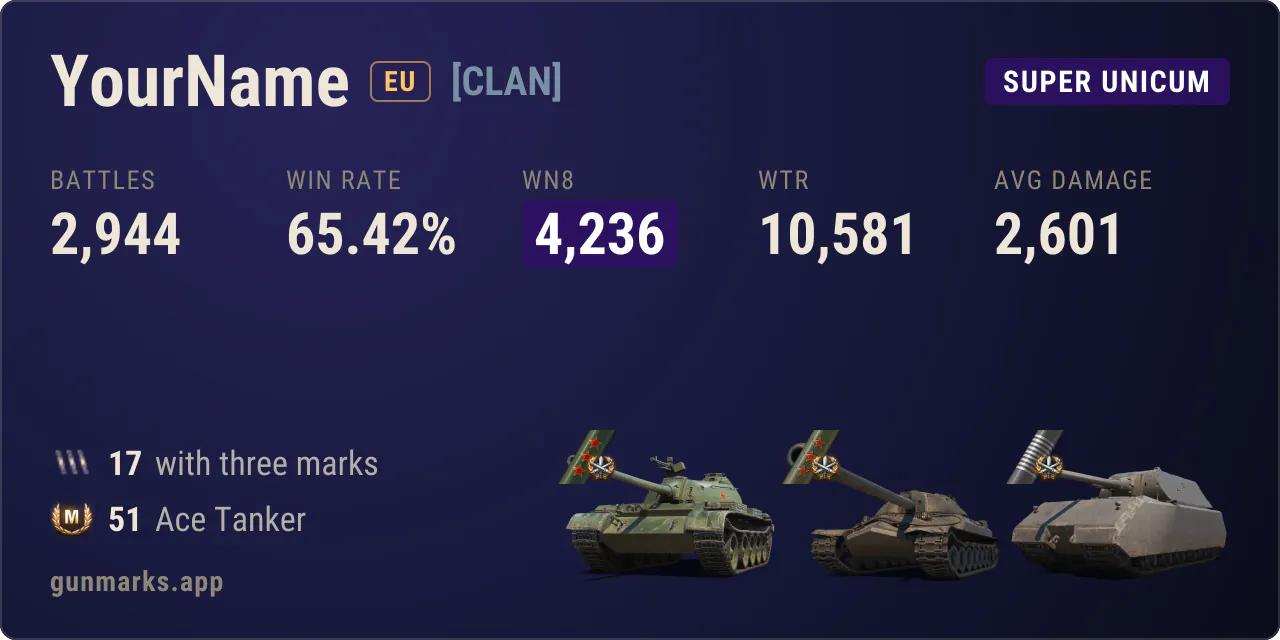
Player and clan pages have a Share menu. Copy the page’s link, which shows its preview card when pasted in Discord or elsewhere, or take the Discord card: a picture of the player’s or the clan’s figures sized to be read in a Discord chat, as a message ready to paste or as the picture’s link. A card copied later shows that hour’s figures.

A player’s Discord card: battles, win rate, WN8, WTR and average damage, the vehicles with three marks and Ace Tanker badges, and three of the three-mark vehicles.

Personal Missions, as the game shows them

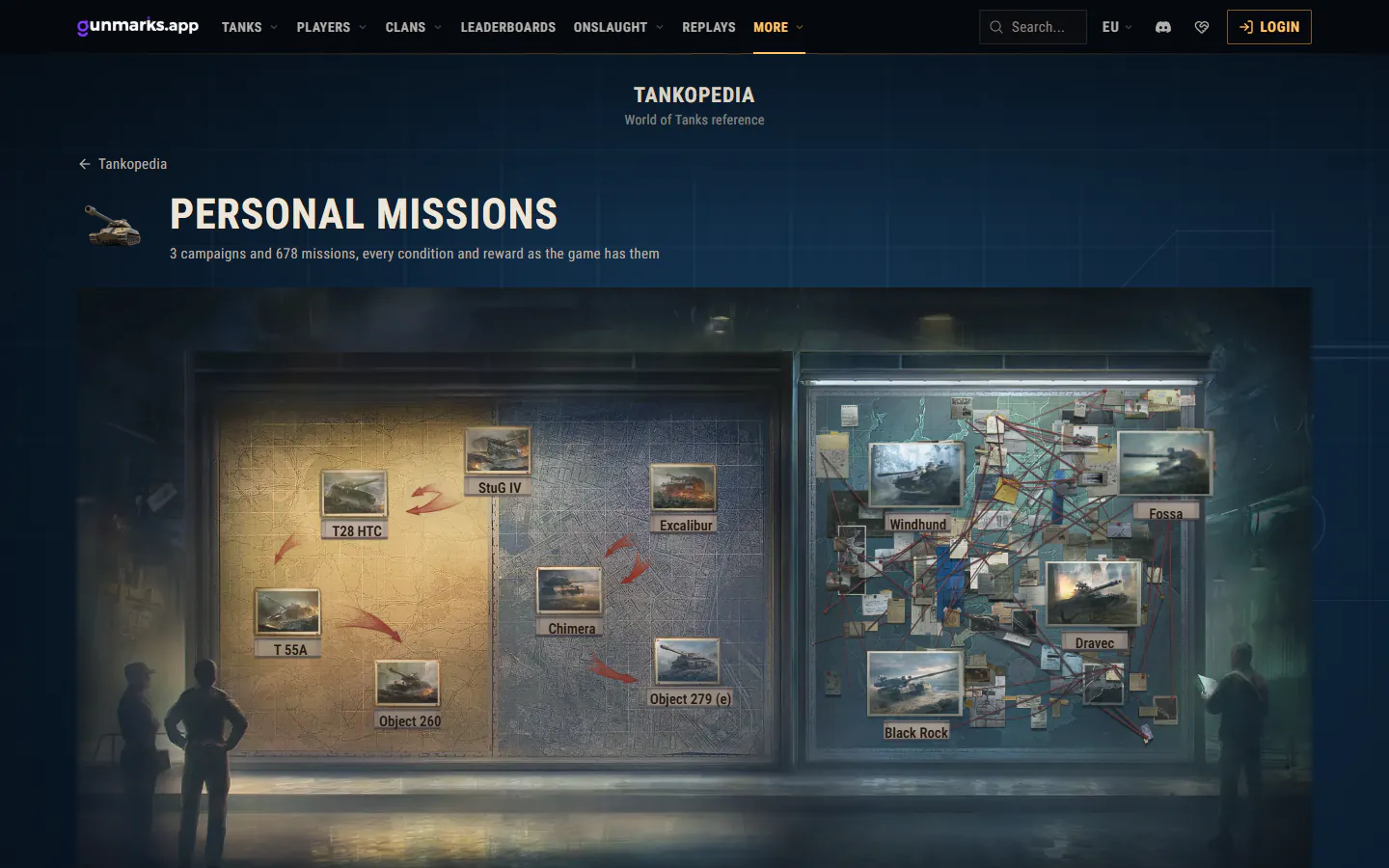
The Tankopedia’s Personal Missions are now the game’s own screens: the operations board, each operation’s map of regions with its chains, and each mission with its conditions worded as the game words them and every reward. Every section, operation, chain and mission has a page of its own, so any of them can be linked.

The Personal Missions board: the campaigns’ operations as the game shows them.

ASIA, back beside EU and NA

ASIA is back in the header’s server menu, each server named in full. Its marks of excellence and mastery thresholds are read every day with EU’s and NA’s, for the home page, the vehicle pages and their trends, its players online are counted again, and the vehicle list, the search and the leaderboards take it too.

Supporting the site

GunMarks is built and run by one person, and it now has a way to help with its costs. The Support page explains how to contribute through PayPal.Me (every contribution is checked by hand) and what supporters get as thanks: a badge on their player card and the leaderboards, more replays a day and replay sharing, no ads, and a player card of their own design.

A strip above the header shows this month’s server costs and how much supporters have covered. Contributions made on or before 31 December 2026 earn the founding supporter badge.

Supporters can dress their player card in 16 backgrounds, four of them animated for those who gave €20 or more in twelve months, and 24 name colours.

Improved9

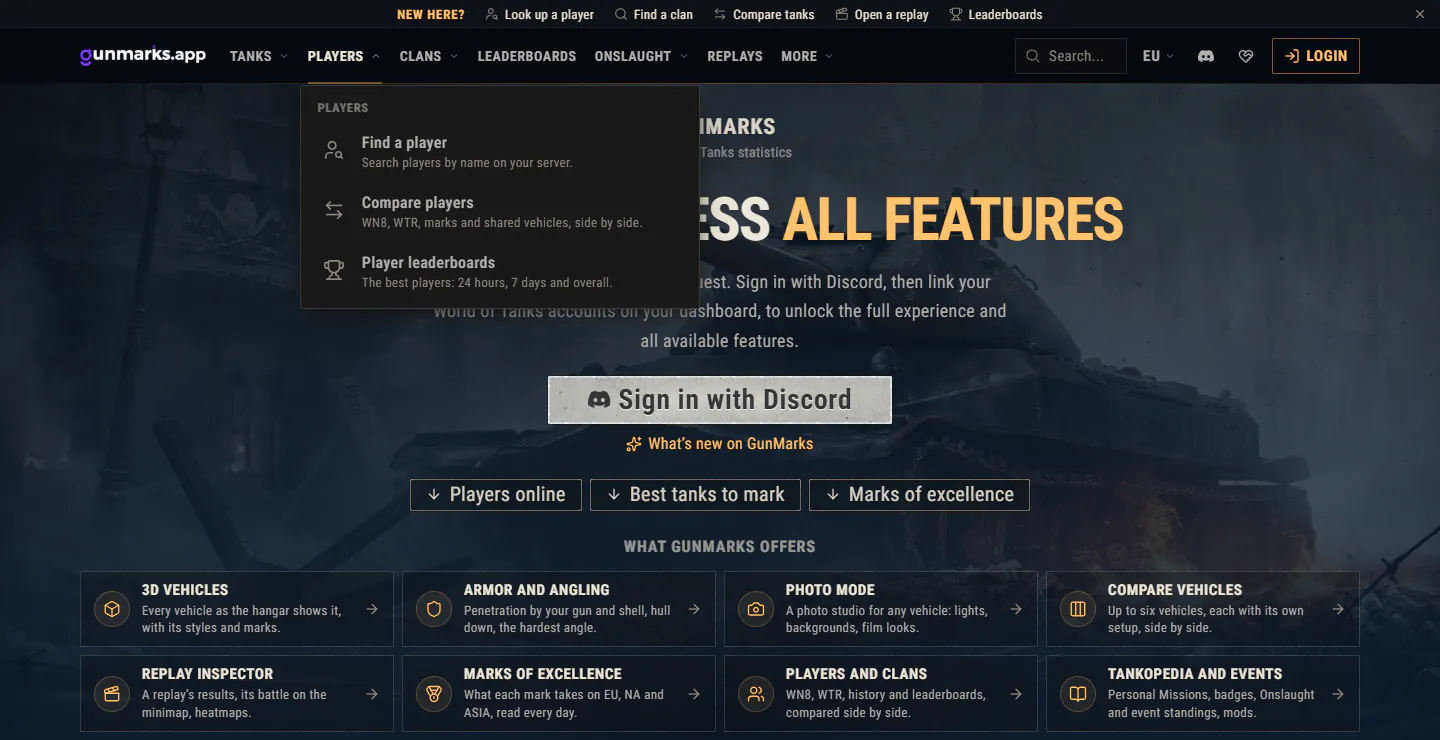
A clearer menu

The menu at the top is regrouped around what the site is for: Tanks (the vehicles, the Tech Tree and Compare vehicles), Players and Clans (finding one, comparing them, and their leaderboards), Leaderboards, Onslaught, Replays, and More for Maneuvers, Pursuit, the Tankopedia, the mods and What’s new. Each row says in a line what it leads to.

On your first visits a slim strip above the menu points to the main tools; close it and it stays closed.

The menu’s Players list open under the header, each row with a line on what it leads to, and the strip that shows a first visit where to start.

A search that finds more

The search at the top (Ctrl K) now looks through everything at once: players with their WN8, battles and clan, clans with their names and members, every tank, the site’s own pages, and Onslaught Competitive: teams, players, tournaments, seasons, maps and vehicles.

Filters under the field narrow it to one kind, what you typed is lit in each result, and if nothing is found it says so. Spelling is forgiving: t34 finds the T-34 and obj 140 the Obj. 140.

It works from the keyboard from start to finish, your recent searches included, and a + on a player’s row adds them to a comparison.

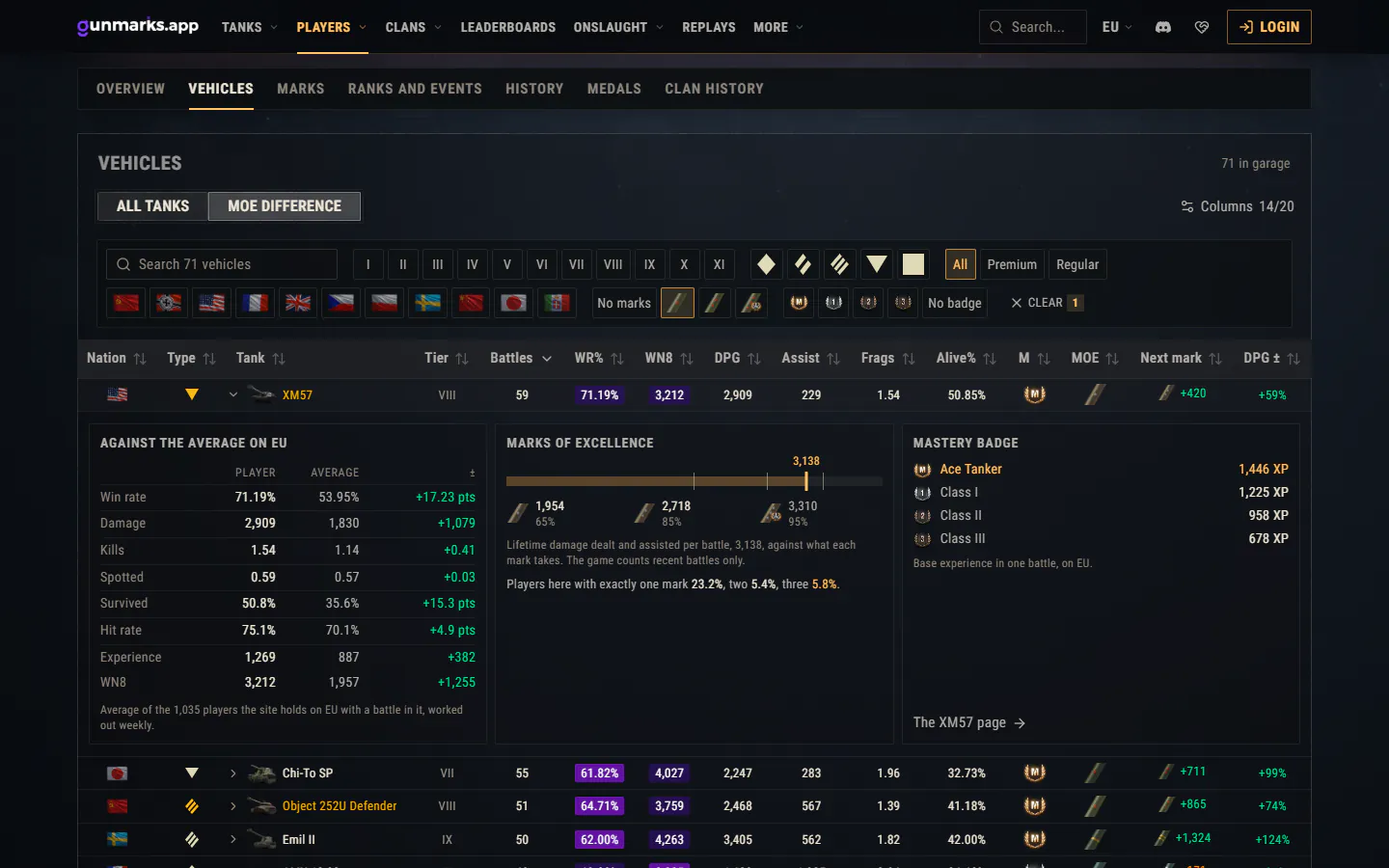
A player’s vehicles against the server

The vehicle table on a player’s page filters by marks of excellence and mastery badges, shows the next mark and how far the player’s damage is from it, and sets their damage and win rate in each vehicle against its average among the server’s players. Press anywhere on a vehicle’s row and it opens to the player against that average figure by figure, the marks’ scale with the player on it, and what each mastery badge takes.

A player’s vehicles with one mark: the next mark and the damage against the server, and the XM57 opened against the EU average, with its marks’ scale and mastery badges.

Marks of excellence at a glance

Each vehicle’s Overview opens with a summary of the day’s marks of excellence and mastery thresholds on each server.

The home page and the filters

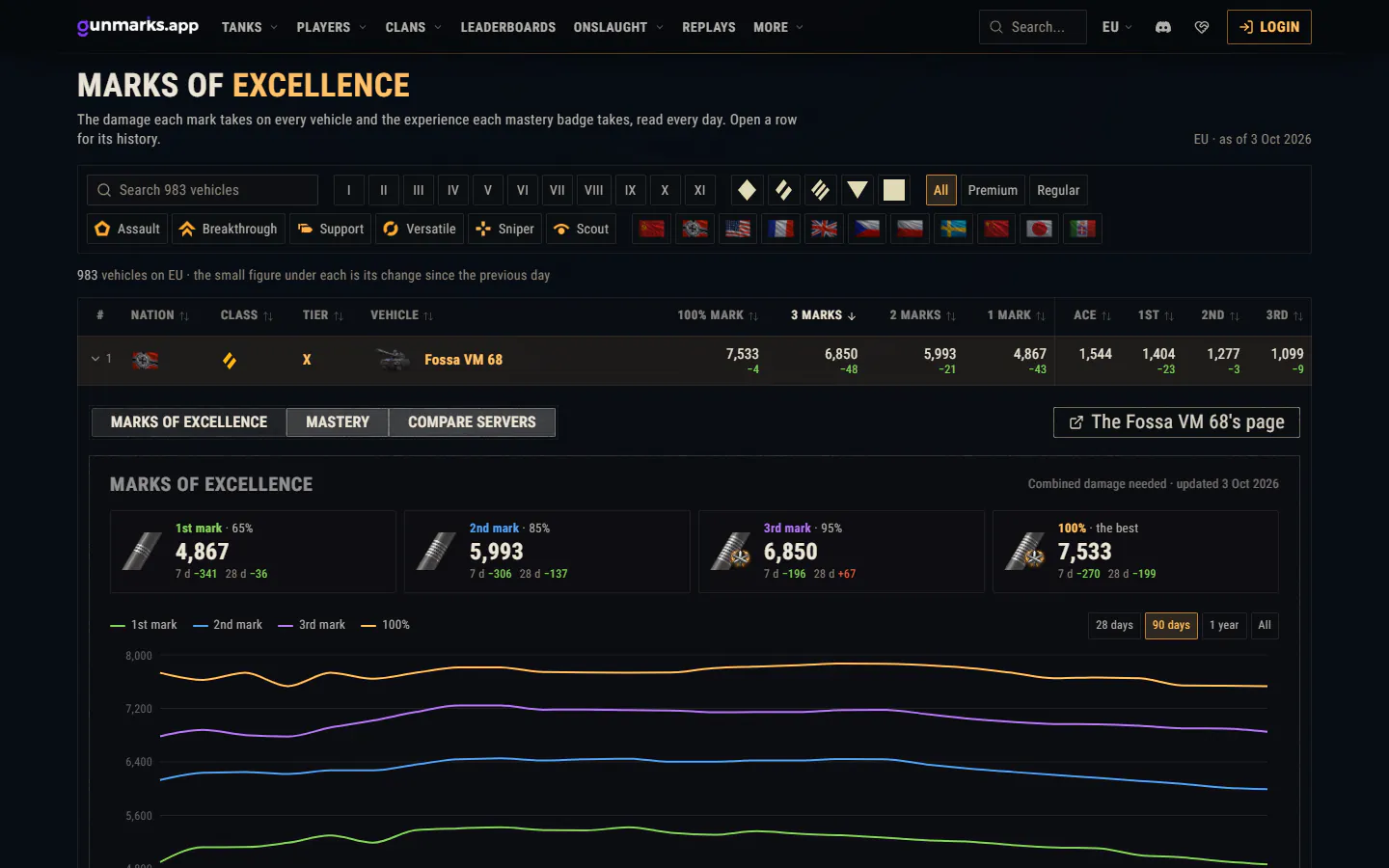
The home page’s sections have headings and links to each at the top, what GunMarks offers is a compact set of tiles rather than a screen of cards, and players online, the vehicles to mark and the marks table are drawn in the game’s kit.

  • A vehicle opened in the marks table shows its page’s Marks and Mastery panels, and compares the servers.
  • On a phone, the marks table is a row per vehicle, with what each mark (65, 85, 95 and 100%) or each mastery badge takes.
  • The marks table and the vehicle list filter by role: Assault, Breakthrough, Support, Versatile, Sniper and Scout.
  • Nations are shown with the Tech Tree’s own nation pictures everywhere: tables, the search, the leaderboards and the filters.
  • The old history chart and its date picker are gone.
The marks of excellence on the home page: filters by tier, class, role and nation, and the Fossa VM 68 opened on its marks, with Mastery and Compare servers beside them.

Onslaught Competitive

The competitive section is in the game’s look. Battles and matches use the Replay Inspector’s scoreboard, sortable by every column, with each player’s details beside it.

  • Battles imported from replays keep their replay, watchable on a page of their own with the map as it was played.
  • The seasons and tournaments pages show each finished season’s winner with its logo and each tournament’s latest three seasons (Show all for the rest), with search, region and tier filters.
  • The All teams table can be filtered by server.
  • Players, teams, maps and vehicles that were never played answer “not found” instead of an empty page.

Replays from older game versions

The Replay Inspector reads replays recorded on older game versions (1.26, 1.27, 1.28, 2.0, 2.1, 2.2 and 2.4) with that version’s own definitions, and draws the battle on the map as it was then. A spectator’s recording also shows the points of interest it never had in view.

Smaller improvements

  • Best tanks to mark right now leaves out the vehicles Wargaming hides, such as Supertest vehicles.
  • Points Pursuit has a player search, and shows the first 50 standings with the rest a click away.
  • The tank leaderboard’s search applies on Enter, and a button clears its filters.
  • Each Tankopedia section has its own address, so Back returns to the index.
  • The header marks the section you are in, and names every section beside a signed-in name from 1280 pixels wide.
  • Pages that fail say so in the site’s look, with Try again and the way home.

Fixed1

Fixes

  • The home page no longer shows “Servers are down” before the servers’ figures arrive.
  • The home page no longer sets a server you chose back to EU when it loads.
  • WN8 and win rates in the yellow band are readable again: their text was light on yellow.
  • Clan descriptions show apostrophes as written, where they showed codes such as '.
  • Compare in the search opens Compare players, instead of a page that does not exist.
  • Legend of Legends no longer shows an empty ladder when its request fails, and offers Try again.
  • The Tankopedia’s lists no longer stay empty for a day after one failed load.
  • The most played maps table no longer squeezes team and player names into each other.
  • A vehicle no longer in the game no longer shows an empty picture in a player’s records.
  • The best players’ links on the tank leaderboard go to each player’s own region.
  • Sortable columns, rows, expanders and the prize calculator can be used from the keyboard, and icon-only tabs are named for screen readers.

Faster1

Lighter pages

  • The competitive pages send only the vehicle names, tiers and classes they show, a fraction of the vehicle data they sent before.
  • Player profiles arrive rendered from the server instead of being built in your browser after the page loads.
  • Shared replays are kept a fifth smaller, with nothing lost.

Security1

Safer sign-in

A Wargaming sign-in is now confirmed with Wargaming itself before it counts, and everything an account may do comes from the Discord profile it is linked to.